# Windows
There are 3 options for running Erigon on Windows, listed from easiest to most difficult installation:
* [Build executable binaries natively for Windows](#build-executable-binaries-natively-for-windows): Use the pre-built Windows executables that can be natively run on Windows without any emulation or containers required.
* [Use Docker](#use-docker): Run Erigon in a Docker container for isolation from the host Windows system. This avoids dependencies on Windows but requires installing Docker.
* [Use Windows Subsystem for Linux (WSL)](#use-windows-subsystem-for-linux-wsl): Install the Windows Subsystem for Linux (WSL) to create a Linux environment within Windows. Erigon can then be installed in WSL by following the Linux build instructions. This provides compatibility with Linux builds but involves more setup overhead.
## **Build executable binaries natively for Windows**
Before proceeding, ensure that the general [requirements](https://docs.erigon.tech/erigon/v2/basic-usage/getting-started/..#hardware-requirements) are met.
### Installing Chocolatey
Install *Chocolatey package manager* by following these [instructions](https://docs.chocolatey.org/en-us/choco/setup).
Once your Windows machine has the above installed, open the **Command Prompt** by typing "**cmd**" in the search bar and check that you have correctly installed Chocolatey:
```
choco -v
```
Now you need to install the following components: `cmake`, `make`, `mingw` by:
```
choco install cmake make mingw
```
{% hint style="info" %}
**Important note about Anti-Virus:** During the compiler detection phase of MinGW, some temporary executable files are generated to test the compiler capabilities. It's been reported that some anti-virus programs detect these files as possibly infected with the `Win64/Kryptic.CIS` Trojan horse (or a variant of it). Although these are false positives, we have no control over the 100+ vendors of security products for Windows and their respective detection algorithms and we understand that this may make your experience with Windows builds uncomfortable. To work around this, you can either set exclusions for your antivirus software specifically for the`build\bin\mdbx\CMakeFiles` subfolder of the cloned repo, or you can run Erigon using the other two options below.
{% endhint %}
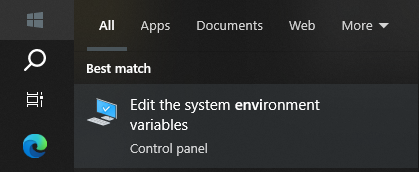
Make sure that the Windows System Path variable is set correctly. Use the search bar on your computer to search for “**Edit the system environment variable**”.
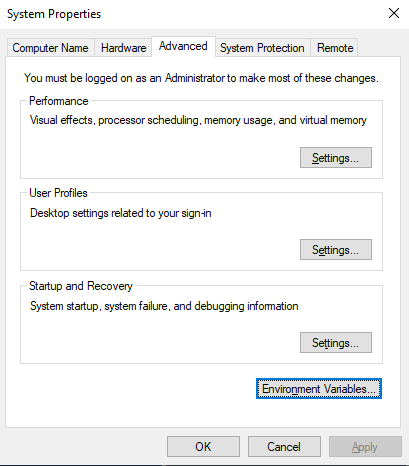
Click the “**Environment Variables...**” button.
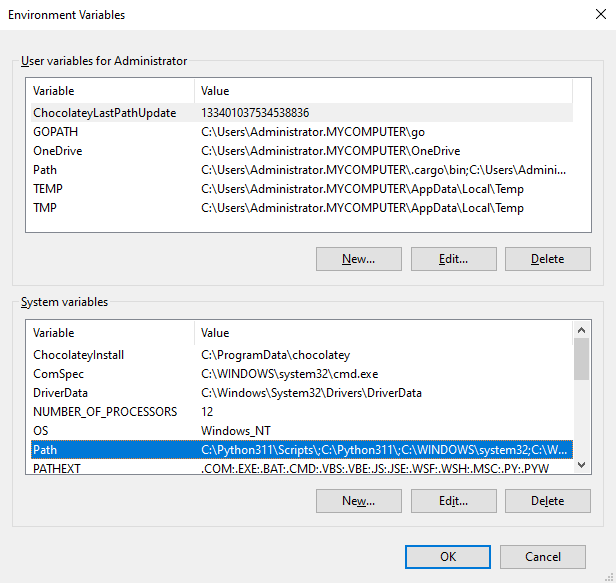
Look down at the "**System variables**" box and double click on "**Path**" to add a new path.
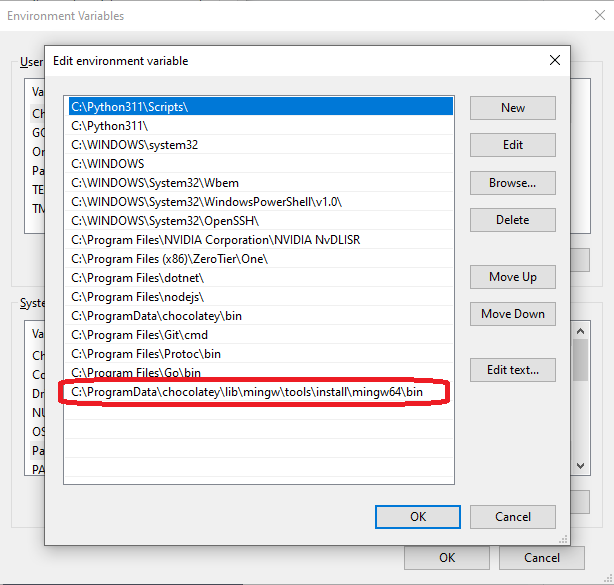
Then click on the "**New**" button and paste the path here:
```
C:\ProgramData\chocolatey\lib\mingw\tools\install\mingw64\bin
```
### Clone the Erigon repository
Make sure you have Git installed, see .
Open the Command Prompt and type the following:
{% code overflow="wrap" %}
```batch
git clone --branch v2.61.3 --single-branch https://github.com/erigontech/erigon.git
```
{% endcode %}
### Compiling Erigon
To compile Erigon there are two alternative methods:
* [Compiling from the wmake.ps1 file in the File Explorer](#compiling-from-the-wmake.ps1-file-in-the-file-explorer)
* [Using the PowerShell CLI](#using-the-powershell-cli)
#### Compiling from the wmake.ps1 file in the File Explorer
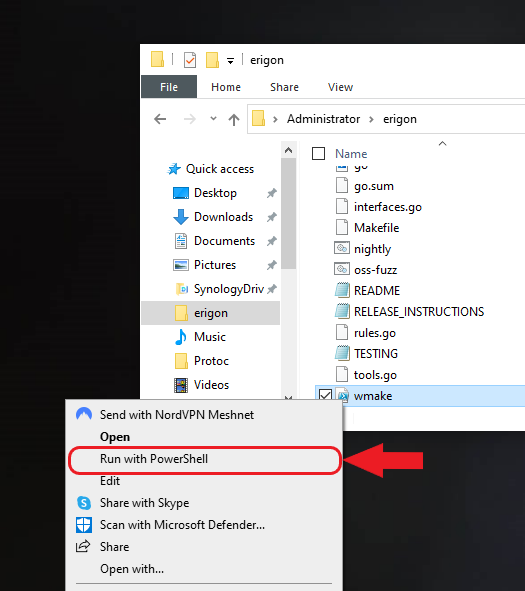
This is the fastest way which normally works for everyone. Open the File Explorer and go to the Erigon folder, then right click the `wmake` file and choose "**Run with PowerShell**".
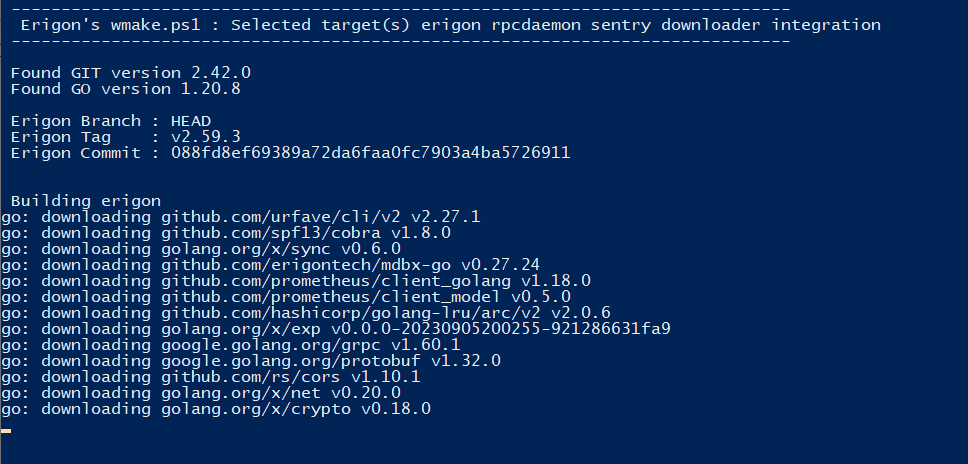
PowerShell will compile Erigon and all of its modules. All binaries are placed in the `.\build\bin\` subfolder.
#### Using the PowerShell CLI
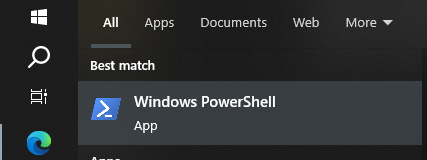
In the search bar on your computer, search for “**Windows PowerShell**” and open it.
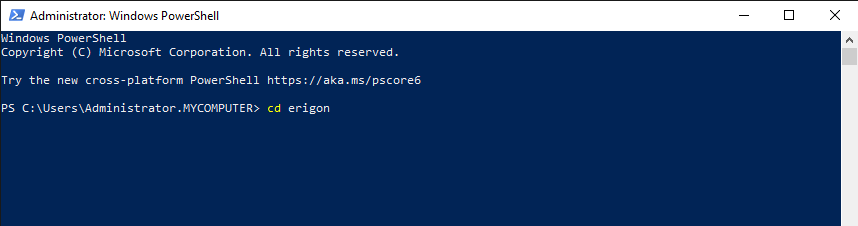
Change the working directory to "**erigon**"
```
cd erigon
```
{% hint style="info" %}
Before proceeding make sure that the [Set-Execution Policy](https://learn.microsoft.com/en-us/powershell/module/microsoft.powershell.security/set-executionpolicy?view=powershell-7.3) PowerShell execution running policies are correct for your Windows account.
{% endhint %}
Now you can compile Erigon and/or any of its component:
`.\wmake.ps1 [-target] `
For example, to build the Erigon executable write:
```
.\wmake.ps1 erigon
```
You can also build other binaries as [RPCDaemon](https://docs.erigon.tech/erigon/v2/advanced-usage/rpc-daemon), [TxPool](https://docs.erigon.tech/erigon/v2/advanced-usage/txpool), [Sentry ](https://docs.erigon.tech/erigon/v2/advanced-usage/sentry)and [Downloader](https://docs.erigon.tech/erigon/v2/advanced-usage/downloader).
All binaries are placed in the `.\build\bin\` subfolder.
## Use Docker
See [docker instructions](https://docs.erigon.tech/erigon/v2/basic-usage/getting-started/docker).
## Use Windows Subsystem for Linux (WSL)
WSL enables running a complete GNU/Linux environment natively within Windows 10, providing Linux compatibility without the performance overhead of traditional virtualization.
To install WSL, follow these instructions: .
{% hint style="info" %}
**Information:** WSL Version 2 is the only version supported.
{% endhint %}
Under this option you can build Erigon as you would on a regular Linux distribution (see detailed instructions [here](https://docs.erigon.tech/erigon/v2/basic-usage/getting-started/linux-and-macos)).
You can also point your data to any of the mounted Windows partitions ( e.g. `/mnt/c/[...]`, `/mnt/d/[...]` etc..) but be aware that performance will be affected: this is due to the fact that these mount points use `DrvFS`, which is a network file system, and additionally MDBX locks the db for exclusive access, meaning that only one process at a time can access the data.
{% hint style="danger" %}
**Warning**: the remote db RPCdaemon is an experimental feature and is **not recommended**, it is extremely slow. It is highly preferable to use the embedded RPCdaemon.
{% endhint %}
This has implications for running `rpcdaemon`, which must be configured as a remote DB, even if it is running on the same machine. If your data is hosted on the native Linux filesystem instead, there are no restrictions. Also note that the default WSL2 environment has its own IP address, which does not match the network interface of the Windows host: take this into account when configuring NAT on port 30303 on your router.
{% content-ref url="../usage" %}
[usage](https://docs.erigon.tech/erigon/v2/basic-usage/usage)
{% endcontent-ref %}